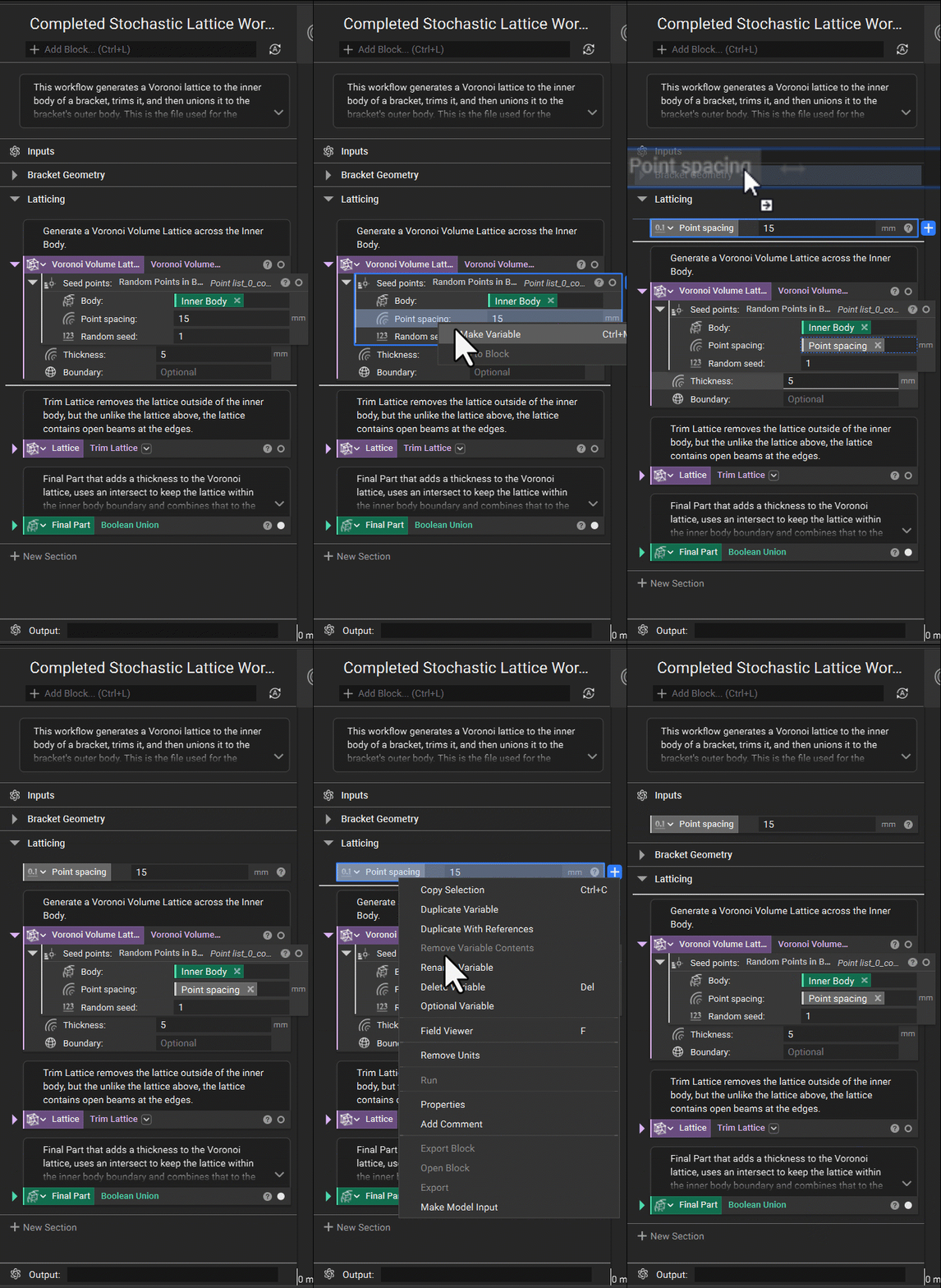
Note: If a variable in the input is referencing something in the workflow, you will not be able to place it into the input. To place that variable into the input, you will have to remove the unit that is being called. See the example below.
Unit Type
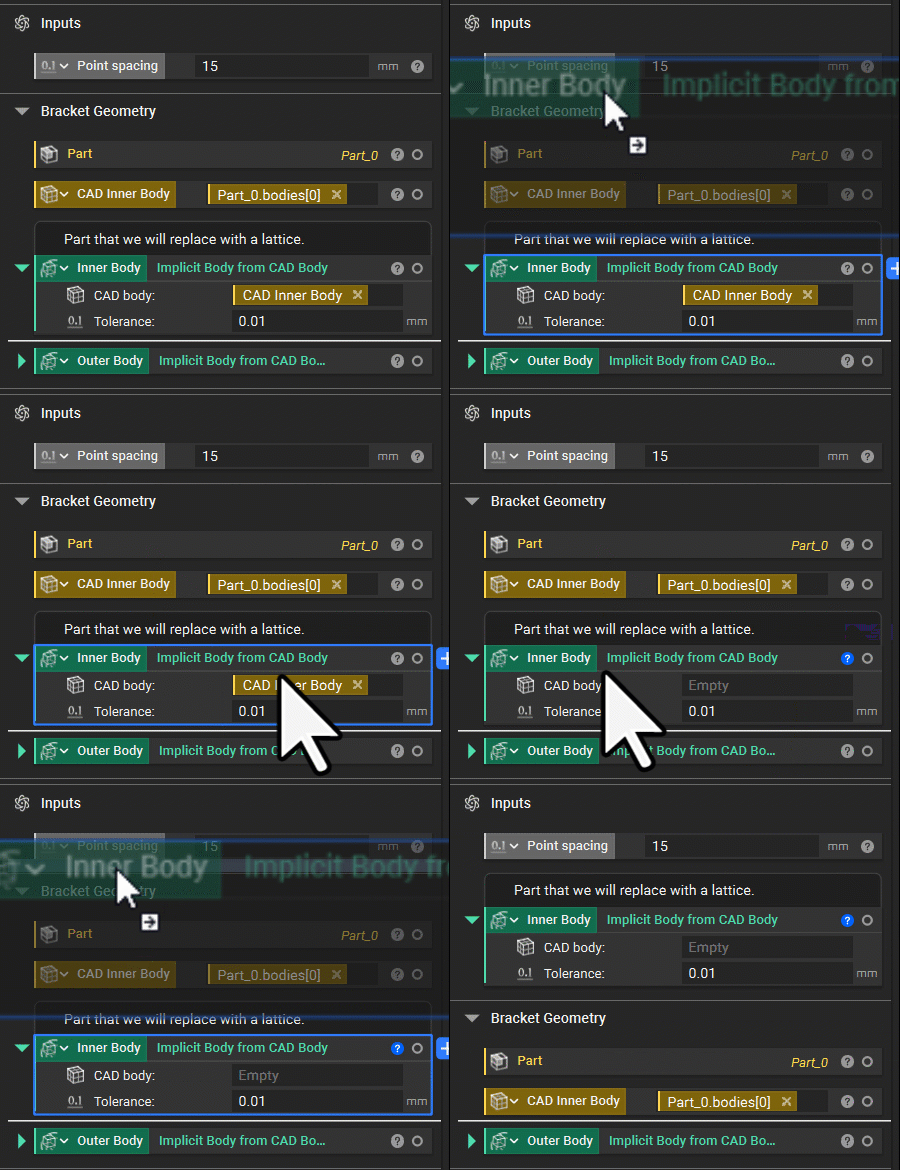
Before importing your CB into another notebook, you could change the variable type. For instance, point spacing is a scalar variable in the example below. However, if you intend to have varying point spacing and uniform values, you must change the type to a scalar field. To do this, click the icon and change it to the right variable type. Once you export this notebook, you will not be able to change that type, so we recommend changing the variable type to the broadest option.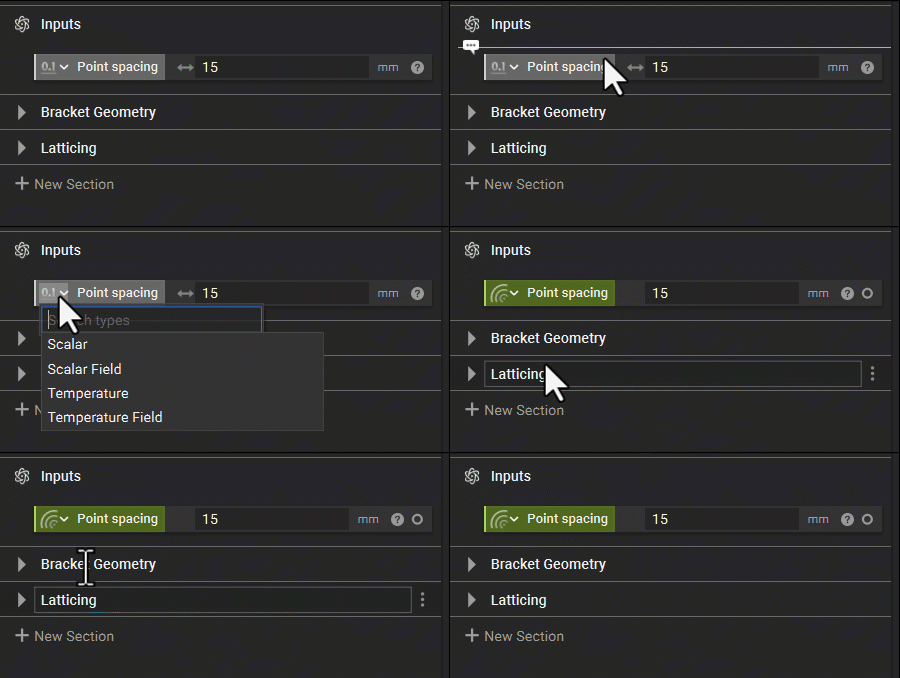
Commenting
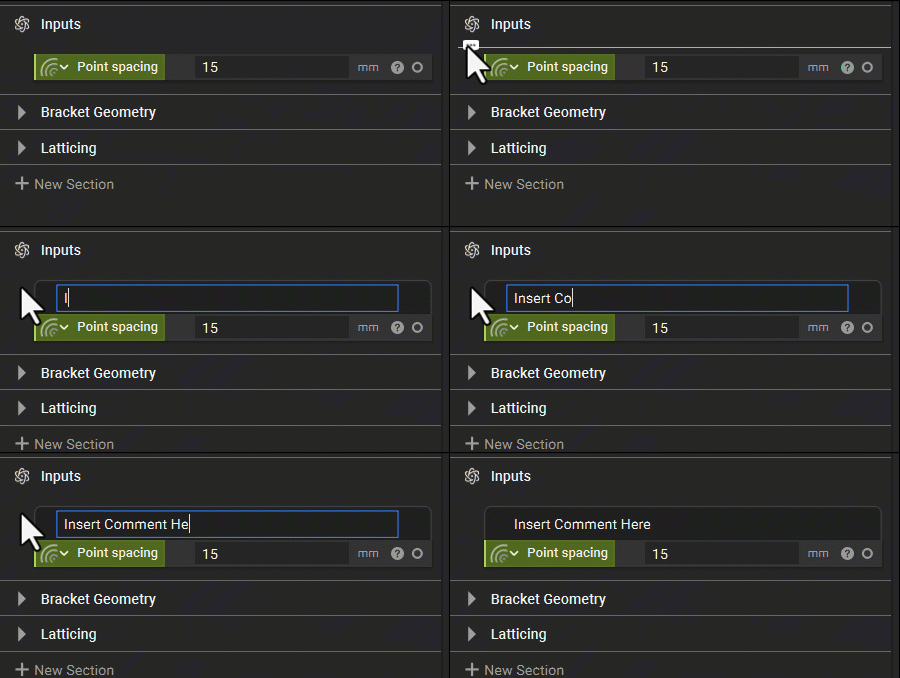
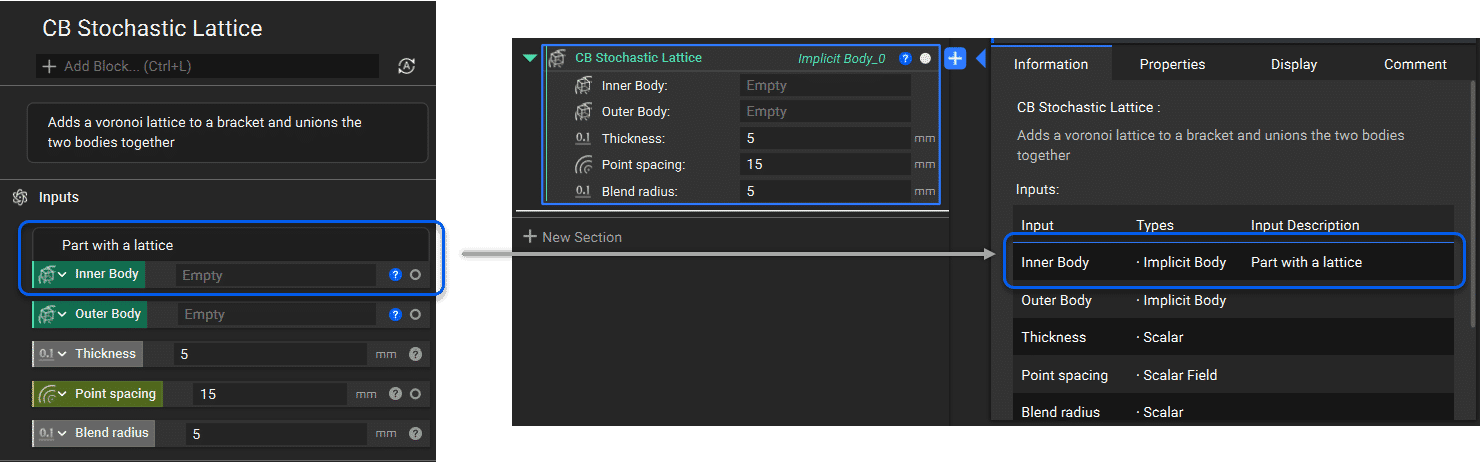
The custom block input name and descriptions will be taken from the notebook’s input name and description. Before exporting, we also recommend adding comments to your inputs. This will help others understand key information regarding those inputs in your CB, whether that is a longer description of the input or a recommended range of values for that input. To add a comment, hover over the top of the input variable and add the comment.