

Licensing
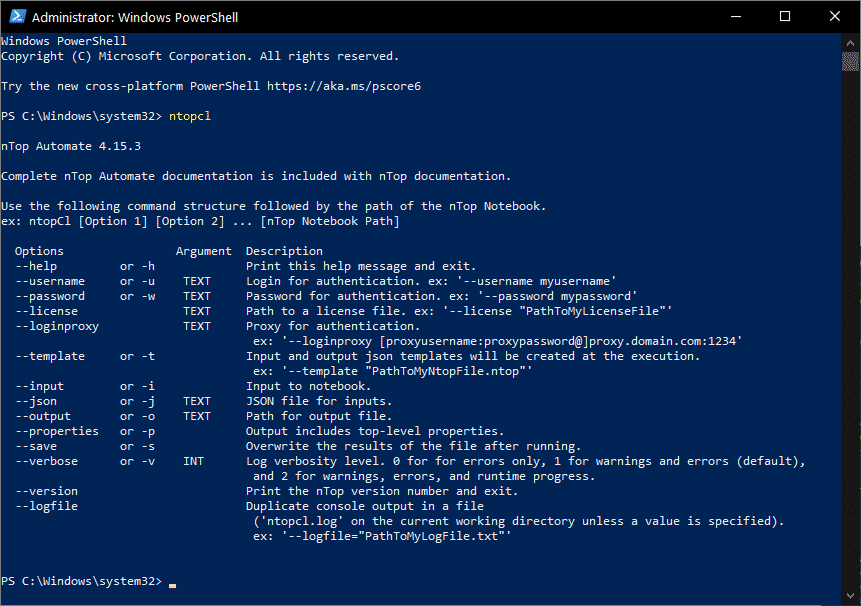
You can run nTopCL without issues if logged in on the normal nTop GUI with your cloud license credential. In the case of local licenses, you will always need to add the argument –license your .lic to your regular command expression. Enter the server address following –license along with the Server Address similar to the step above, and it should log you in. Example: ntopcl –license PORT@HOSTNAMEFor Writing Code in Python
If you plan to follow along, download one of the following free softwares:- Thonny (recommended for beginners)
- Spyder
- Visual Studio Code