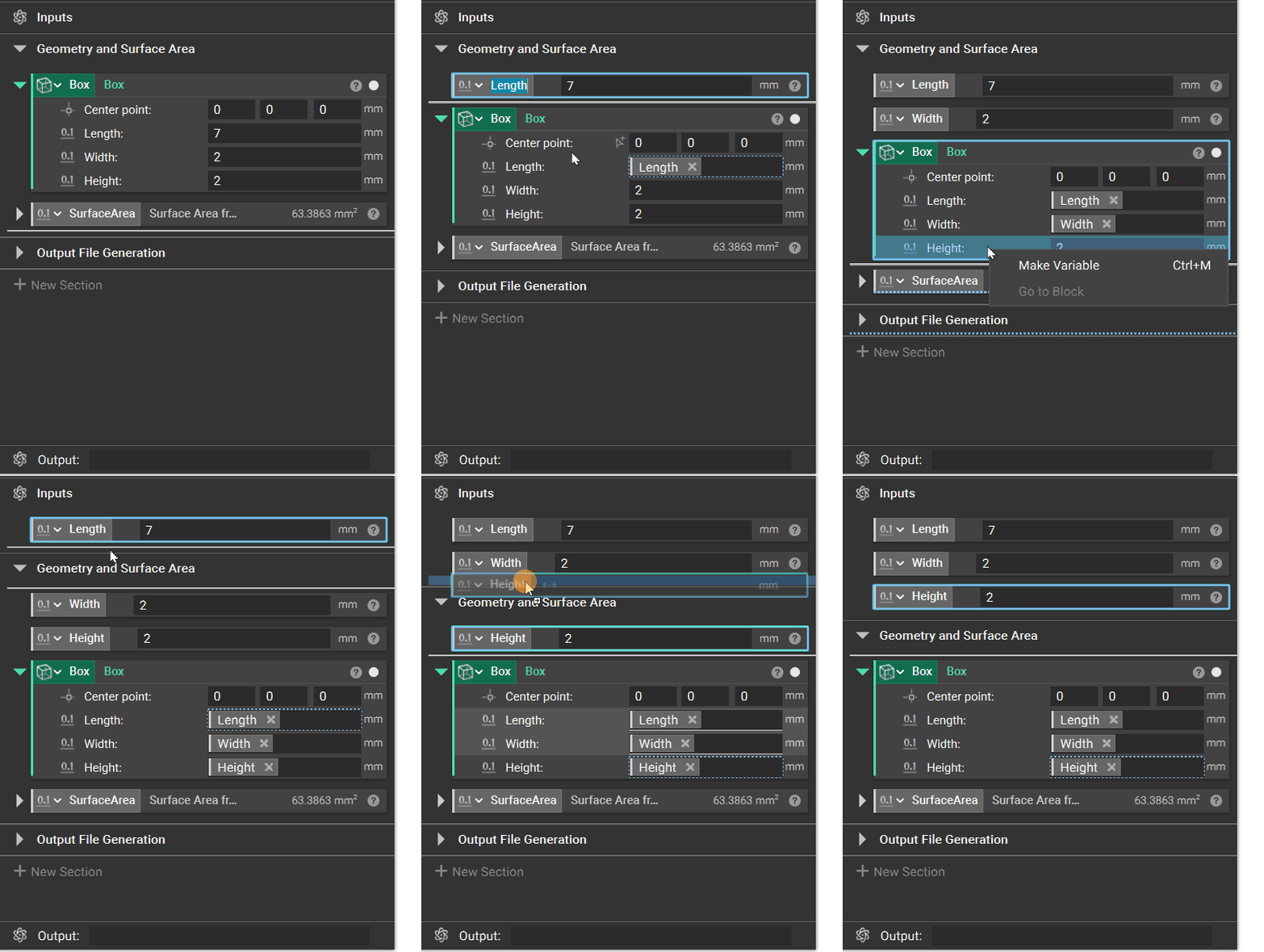
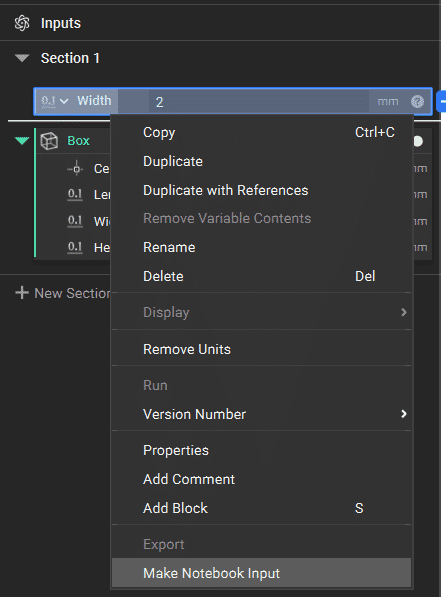
To be able to communicate with your Notebook from outside of nTop, the Notebook must have input(s) and output(s). This works the same way as when creating a Custom Block. If you are unfamiliar with this concept, feel free to revisit the Custom Blocks section of our 230: Intro to Automation course for more details on the topic.
Note: When naming your Notebook files and folders in your working directory, it is recommended to not add any spaces, otherwise you will need to add “quotation marks” around them in the command line.
Output Variable and Export Files
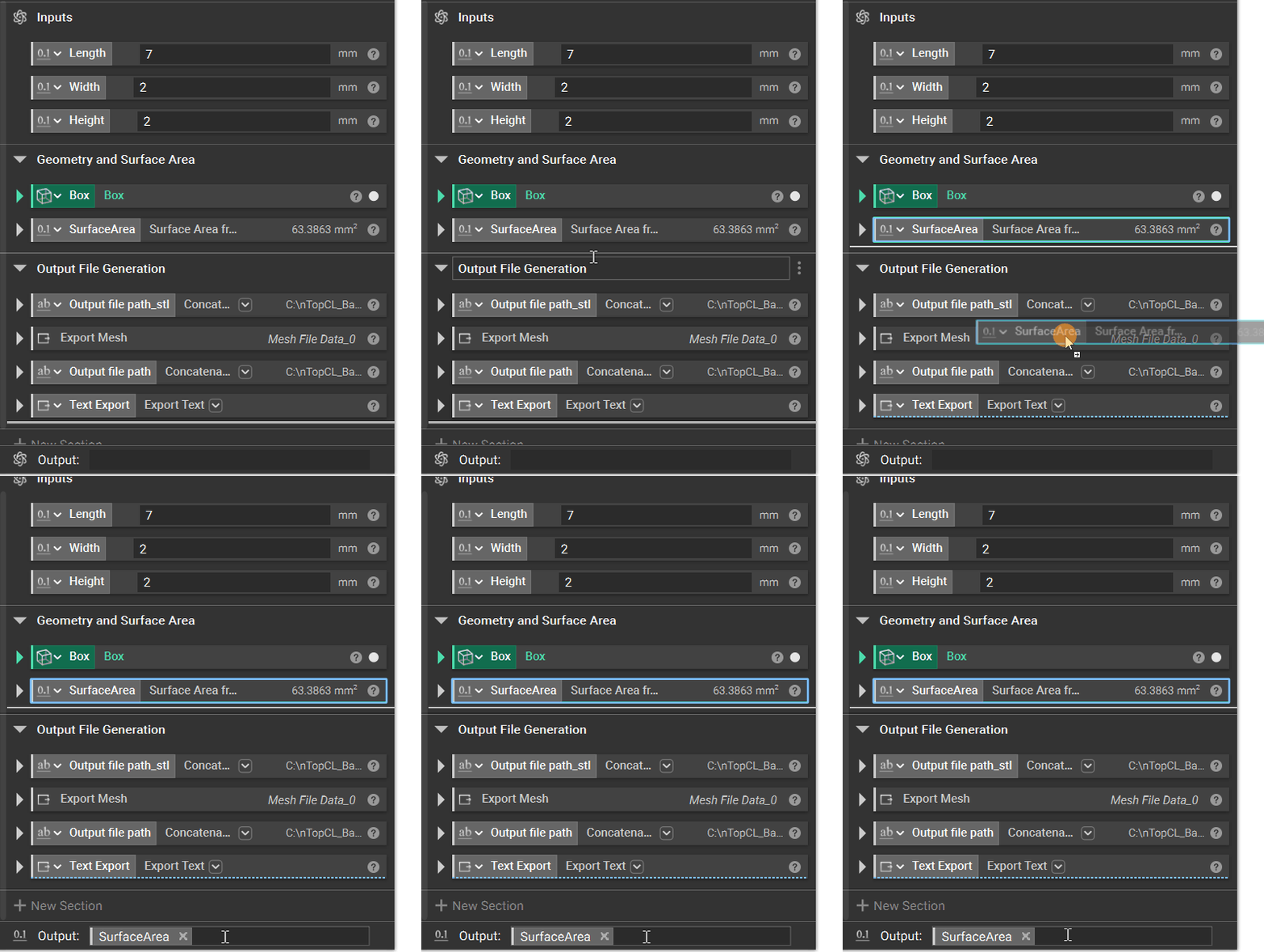
As this follows the Custom Block mechanism, only one variable can be declared as output. You can do this by either dragging the desired variable or typing the variable name into the Output section at the bottom of the Notebook.
Export blocks will produce and place files into the specified directory path with each execution, so you can make use of them if you want to generate files in addition to the chosen output.
Tip:
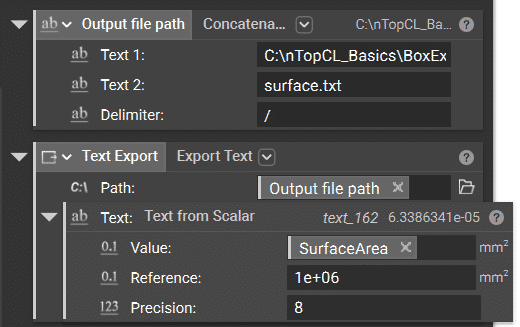
You can use the Export Text and Text from Scalar blocks to print the output value and/or other values as a .txt file that will export with each nTop Automate execution.
With the help of one or multiple Concatenate Text blocks, you can use property chips to add important input values to your exported file name. Check out this Help Center article to learn how to combine scalar lists together as text.
You can use the same method of concatenating texts together to form the desired output file path based on each level of your folder structure made into separate input variables. Workflow
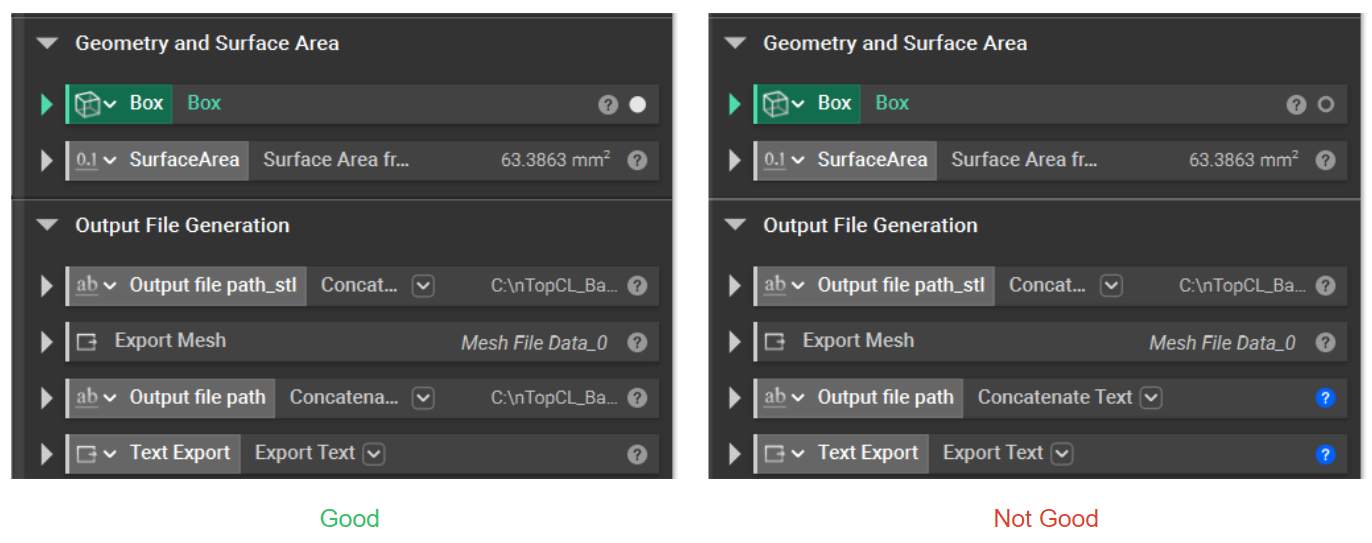
Make sure that your workflow is able to run properly on a test part. Every block in the workflow needs to be computed, meaning there should be no blue question mark icons or error messages.