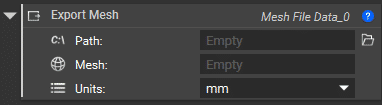
Export Mesh
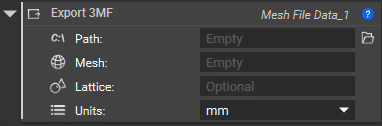
For exporting your part as either an STL, OBJ, PLY, or 3MF file, there are Export Mesh and Export 3MF blocks.
Export CAD Part
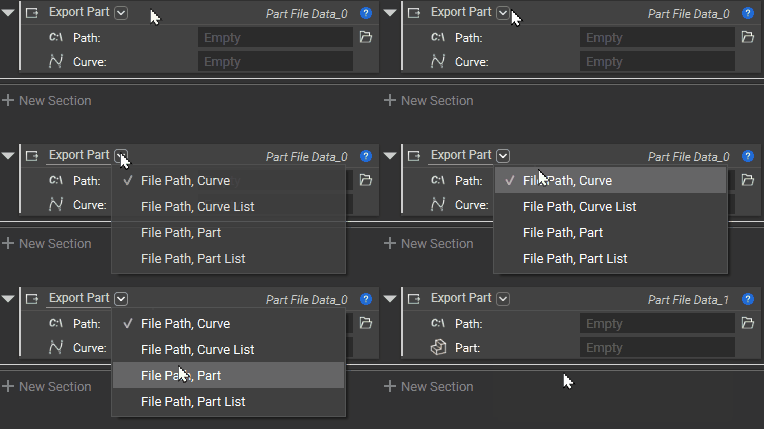
The Export Part block is used to export CAD parts. Implicit bodies must be converted to CAD bodies before exporting. This can be done in one of two ways:

Note: If you don’t see the CAD Body from Implicit Body (Beta) block in nTop, you must enable Beta blocks in your settings. Review this article for more information on Beta blocks.
Export for Additive Manufacturing
Tools for slicing are all found in the Manufacturing tab. There are multiple slice file formats you can export. To learn more about slicing for additive manufacturing, check out our course, 250: Slicing and Print Layout.