Extraction by Manual Selection on Screen
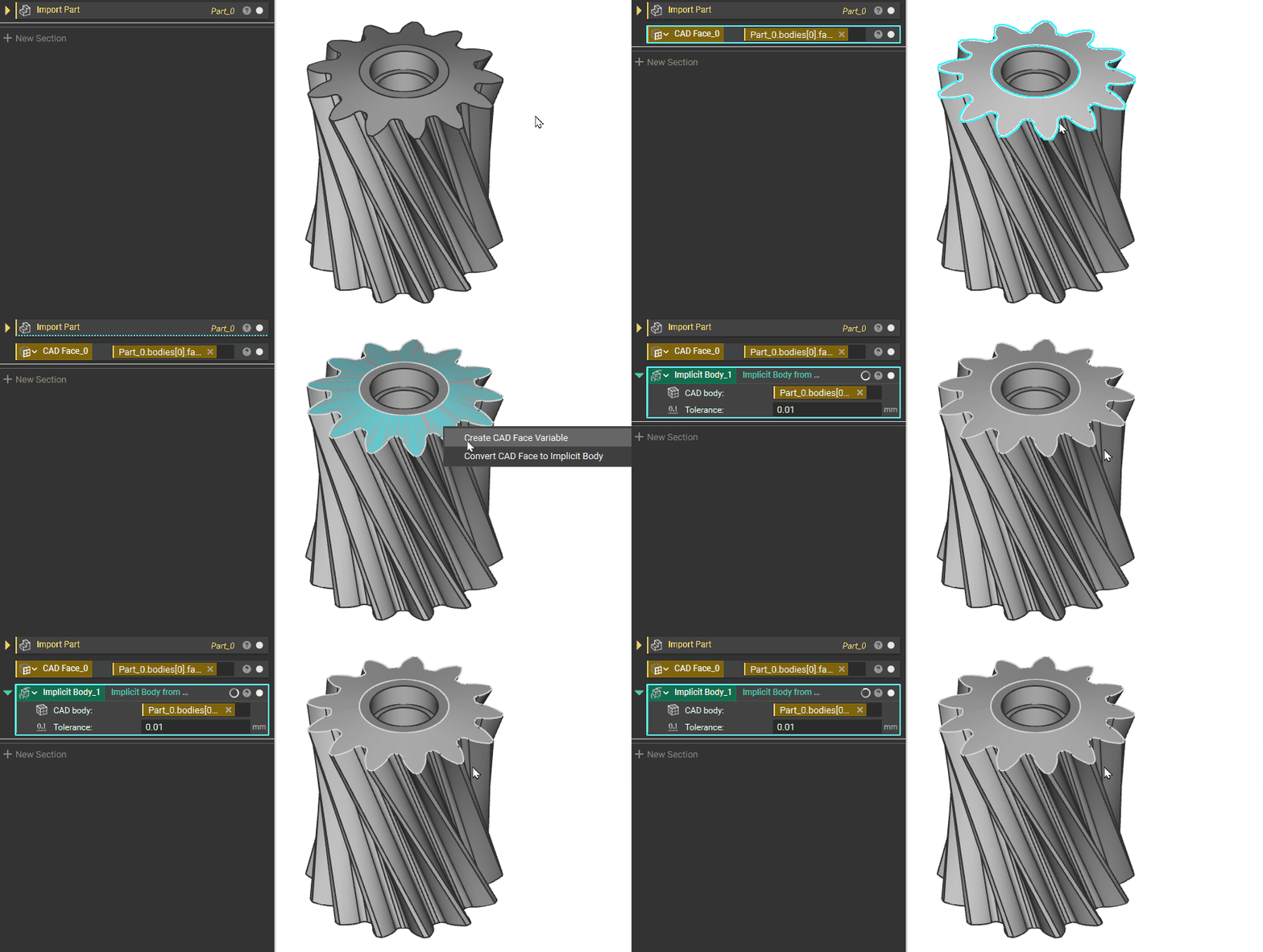
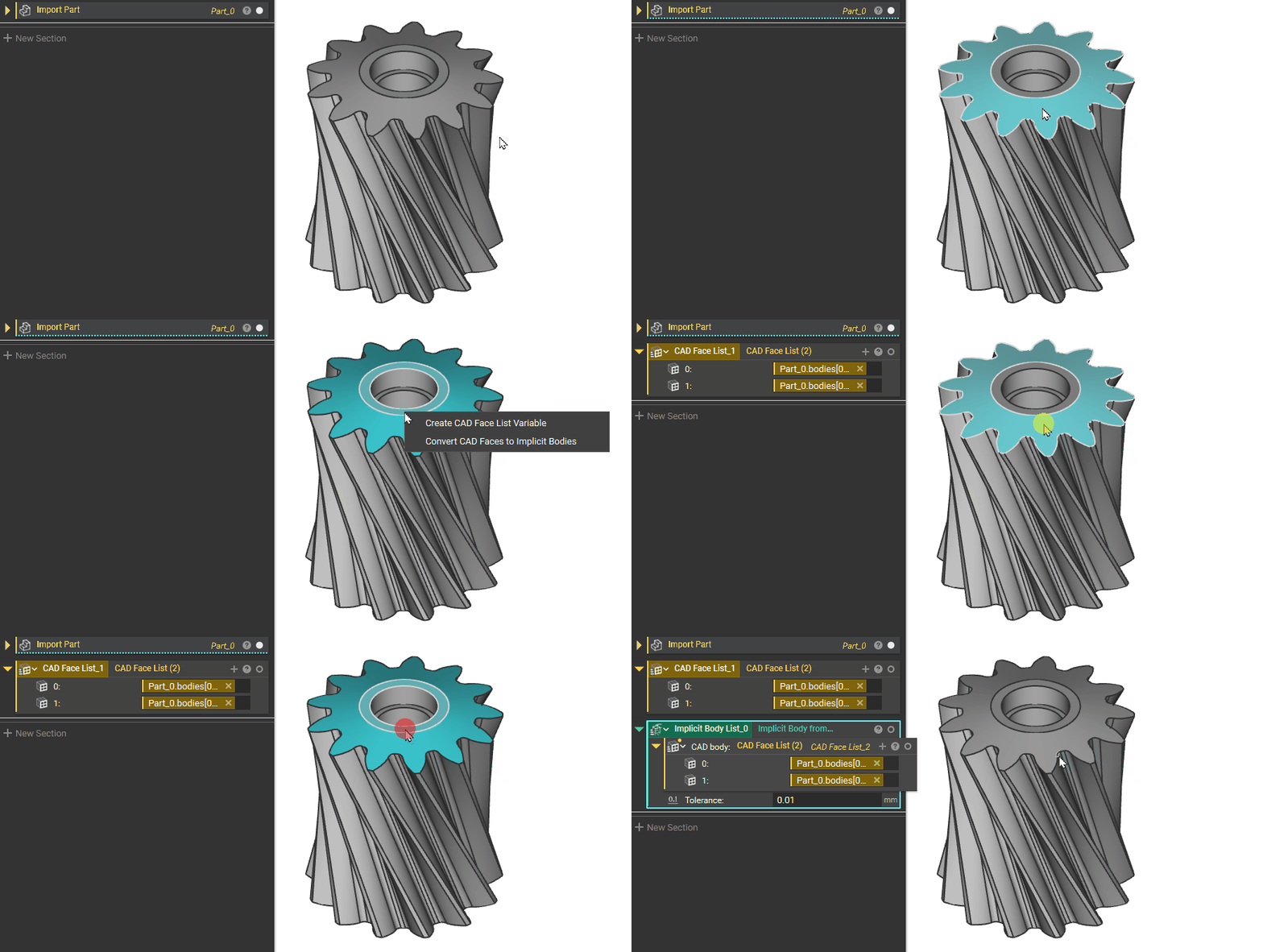
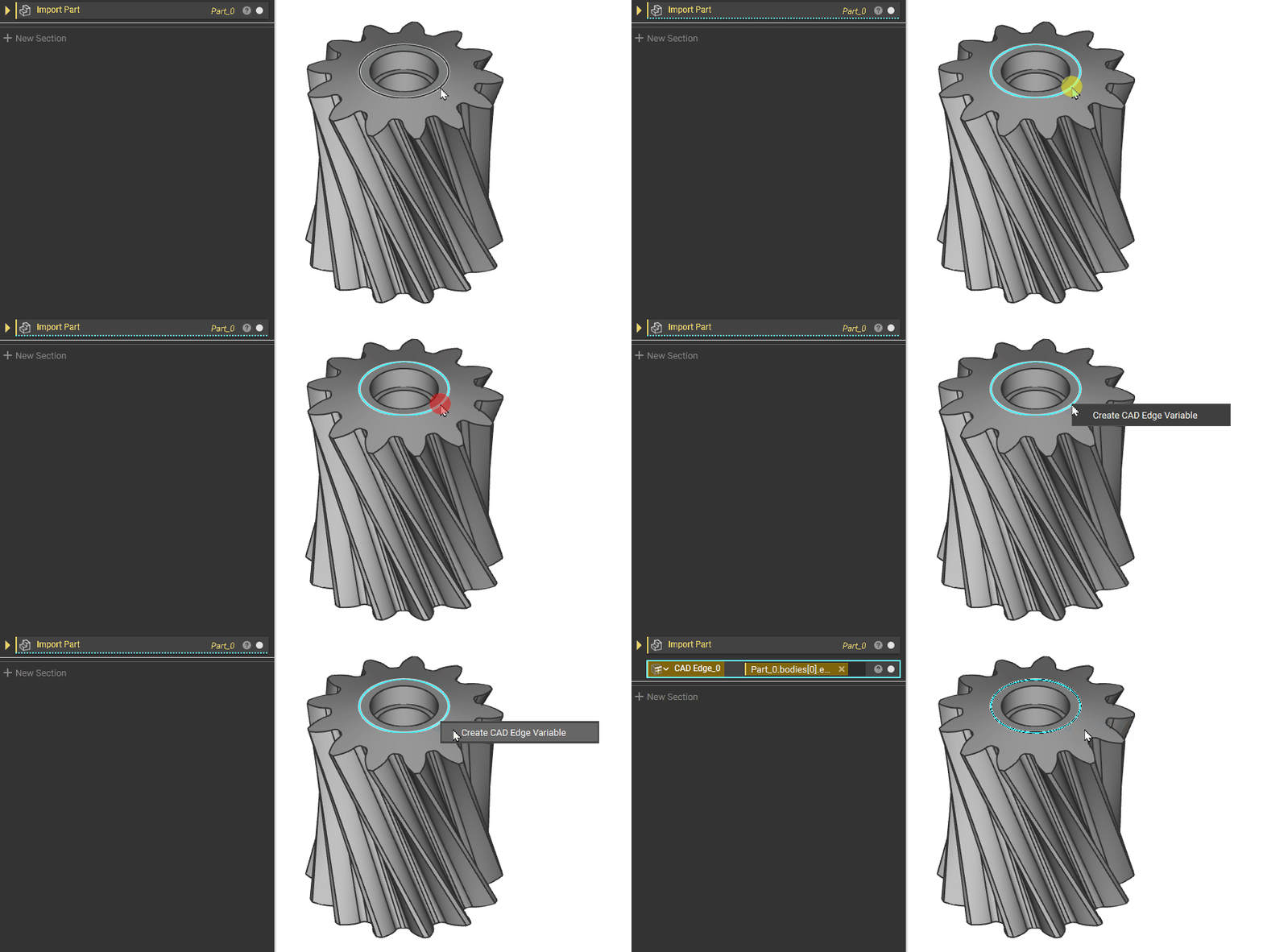
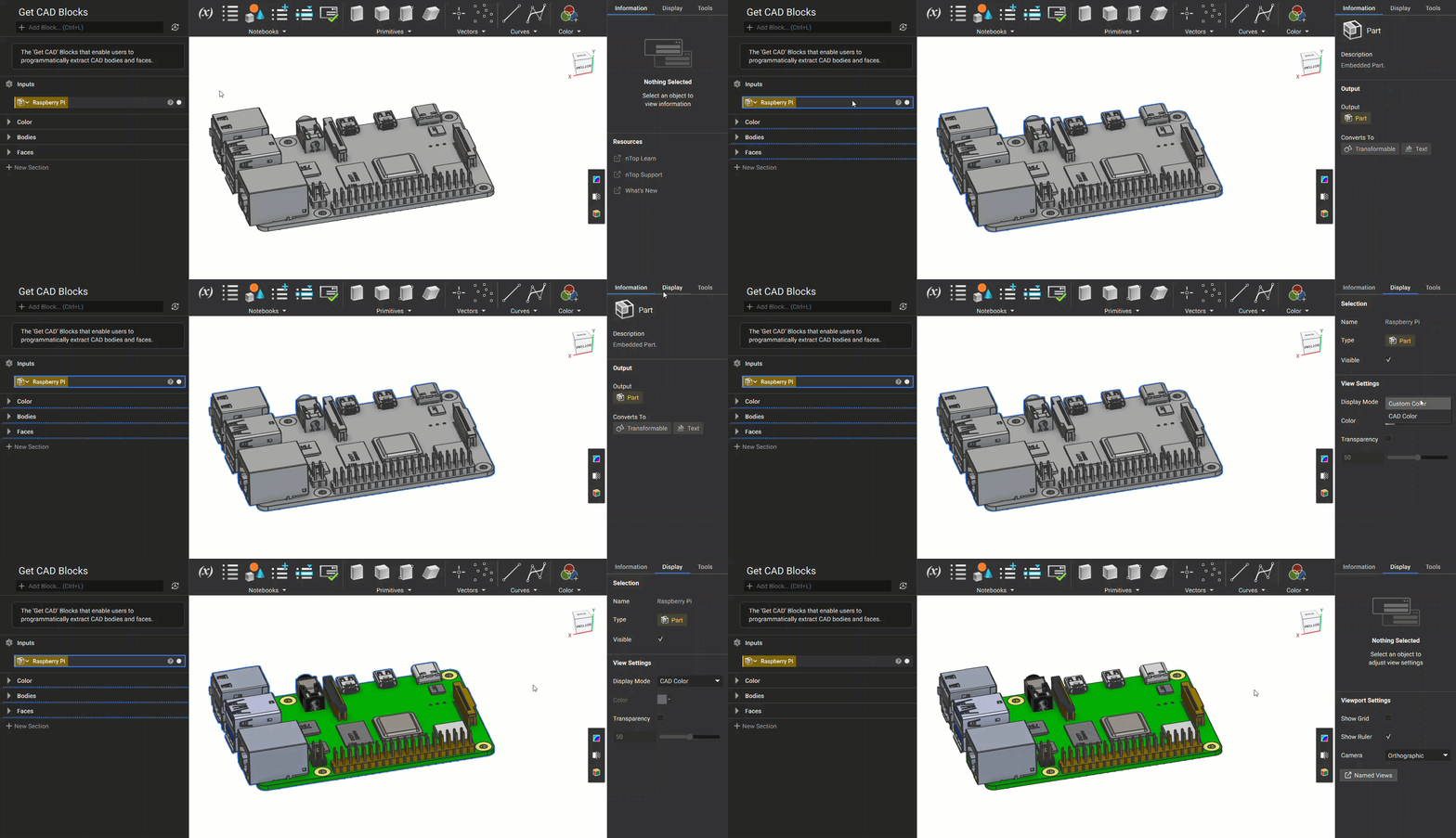
The quickest way to convert an imported CAD part into an implicit body is to extract directly from the part shown on the screen. Both the CAD Body and Face can be converted into implicit bodies as well as made into CAD Body or Face Variables. Double-Click to select the whole body, then right-click to either “Create CAD Body Variable” or “Convert CAD Body to Implicit Body”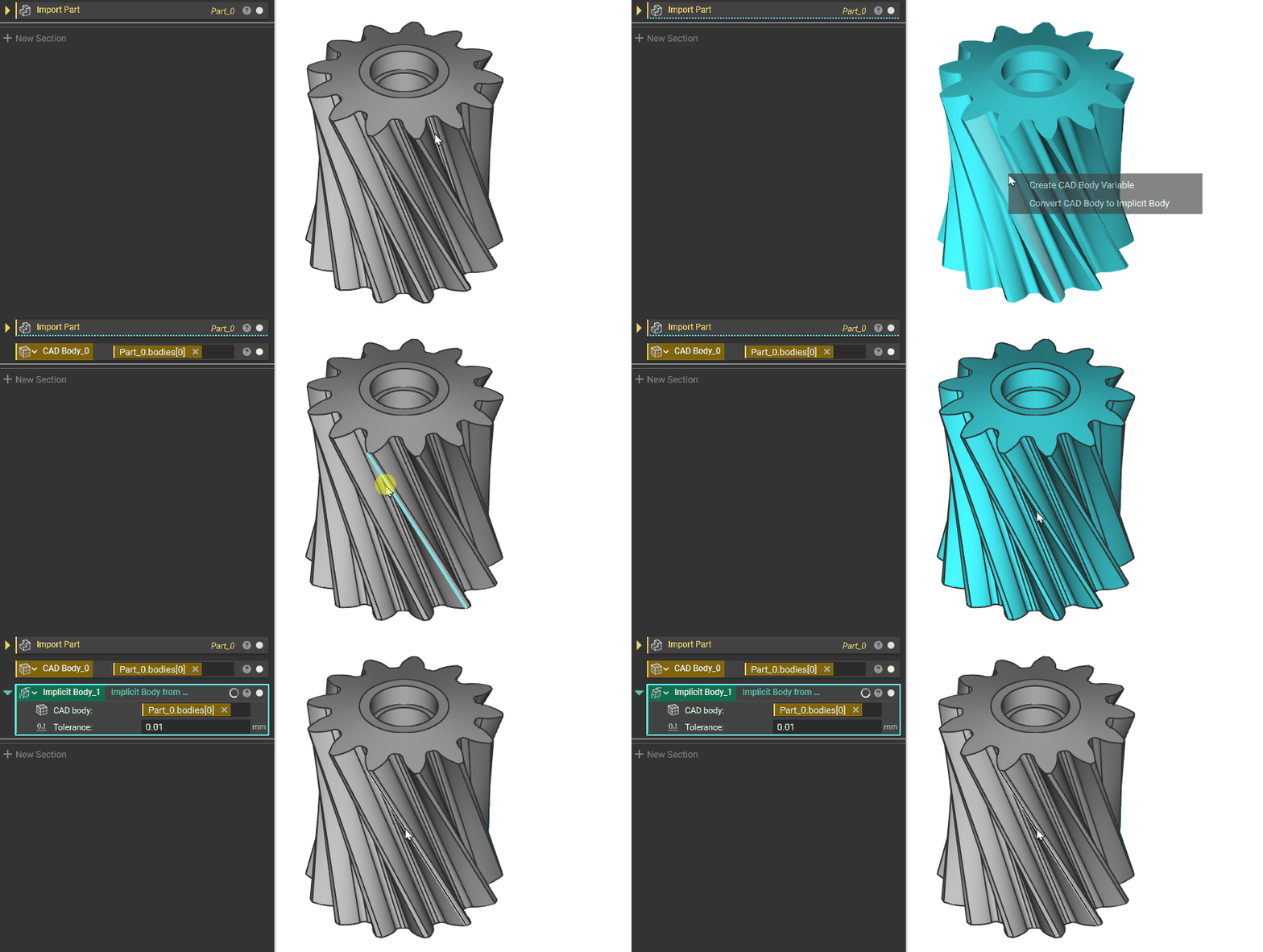
Extraction by Properties
Open up the Properties Panel of the Imported part. Expand the Bodies Properties until you reach the desired element. Drag it into the Notebook to create a block from it.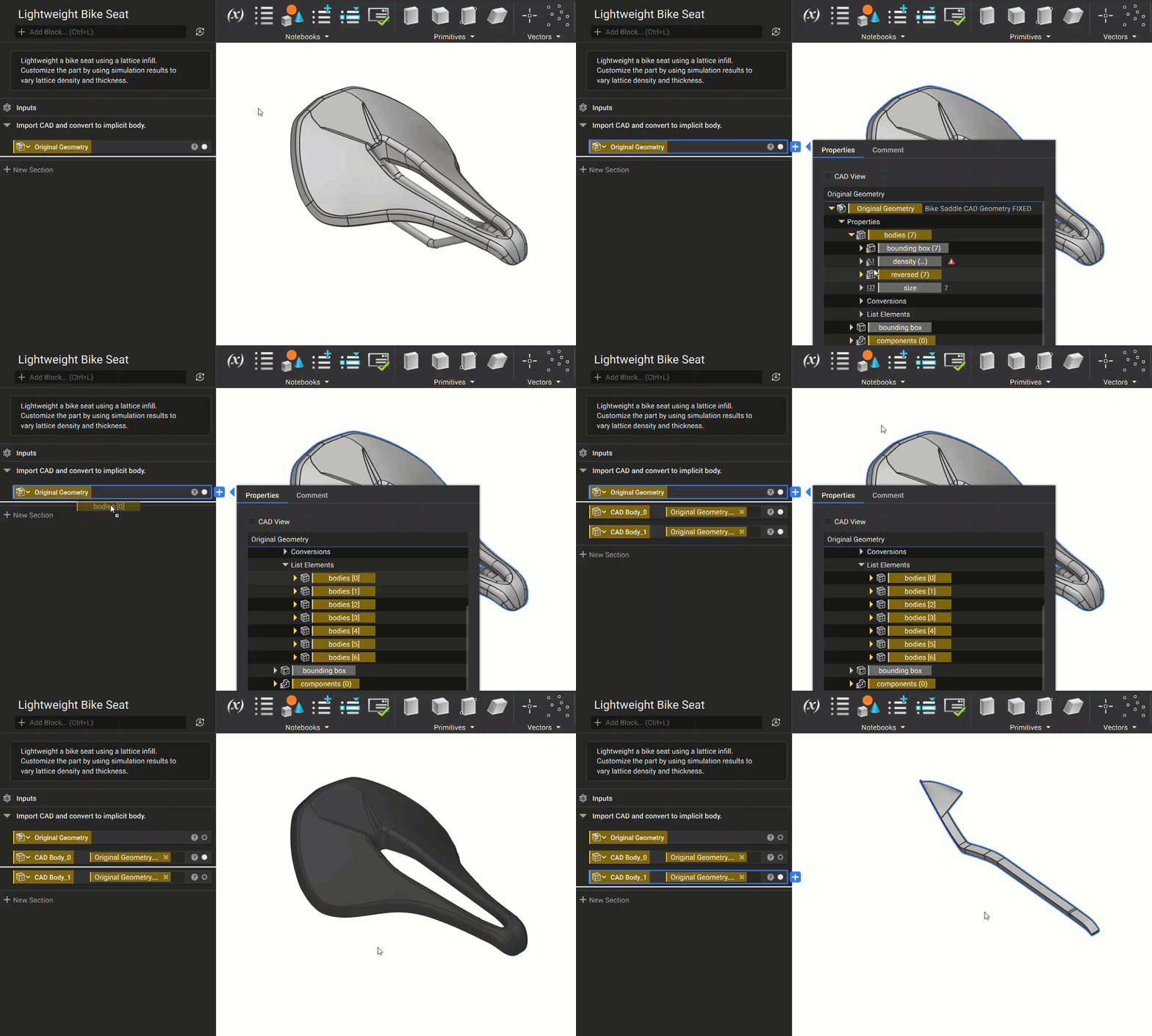
Extraction by Properties using CAD View
When opening the properties panel of an imported CAD part or assembly, there are many property chips to choose from. To simplify extraction we added a CAD View filter, which hides all properties except for CAD bodies.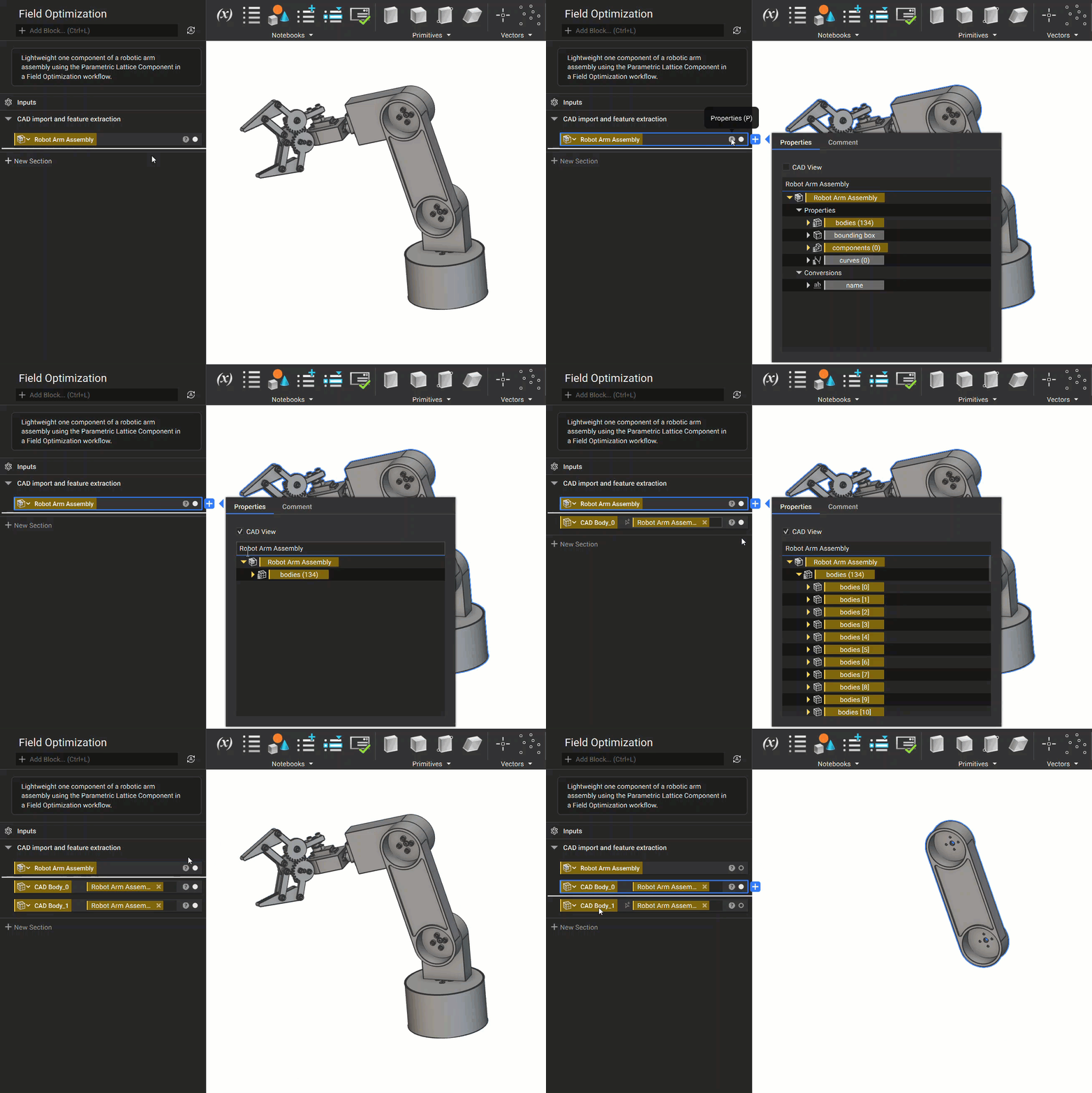
Extraction by CAD Blocks
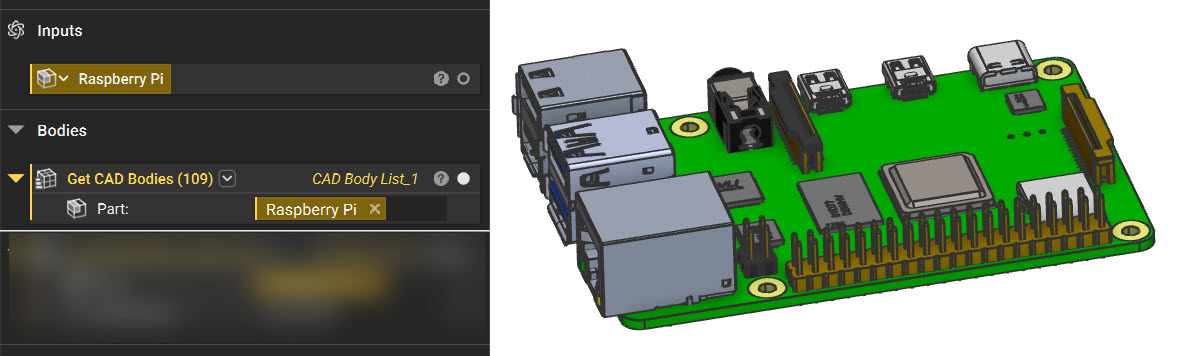
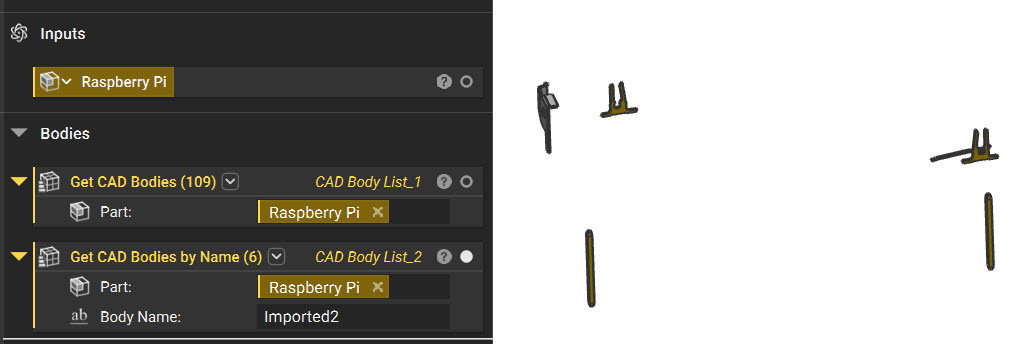
In nTop 5.8, we released a series of new blocks that are designed to help users interact with CAD bodies more efficiently. To extract CAD Faces: Use the Get CAD Faces block: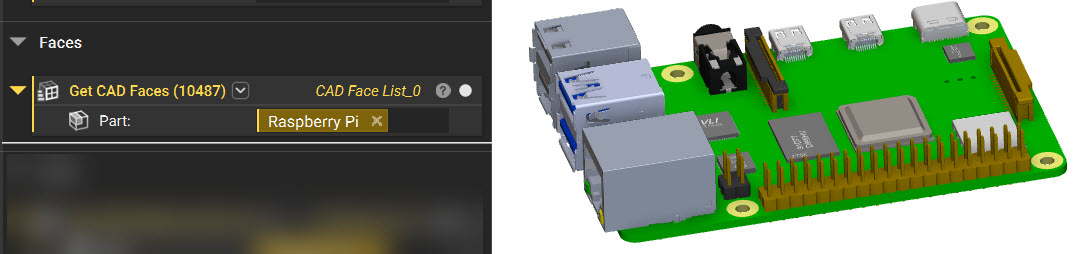
Extraction by Color
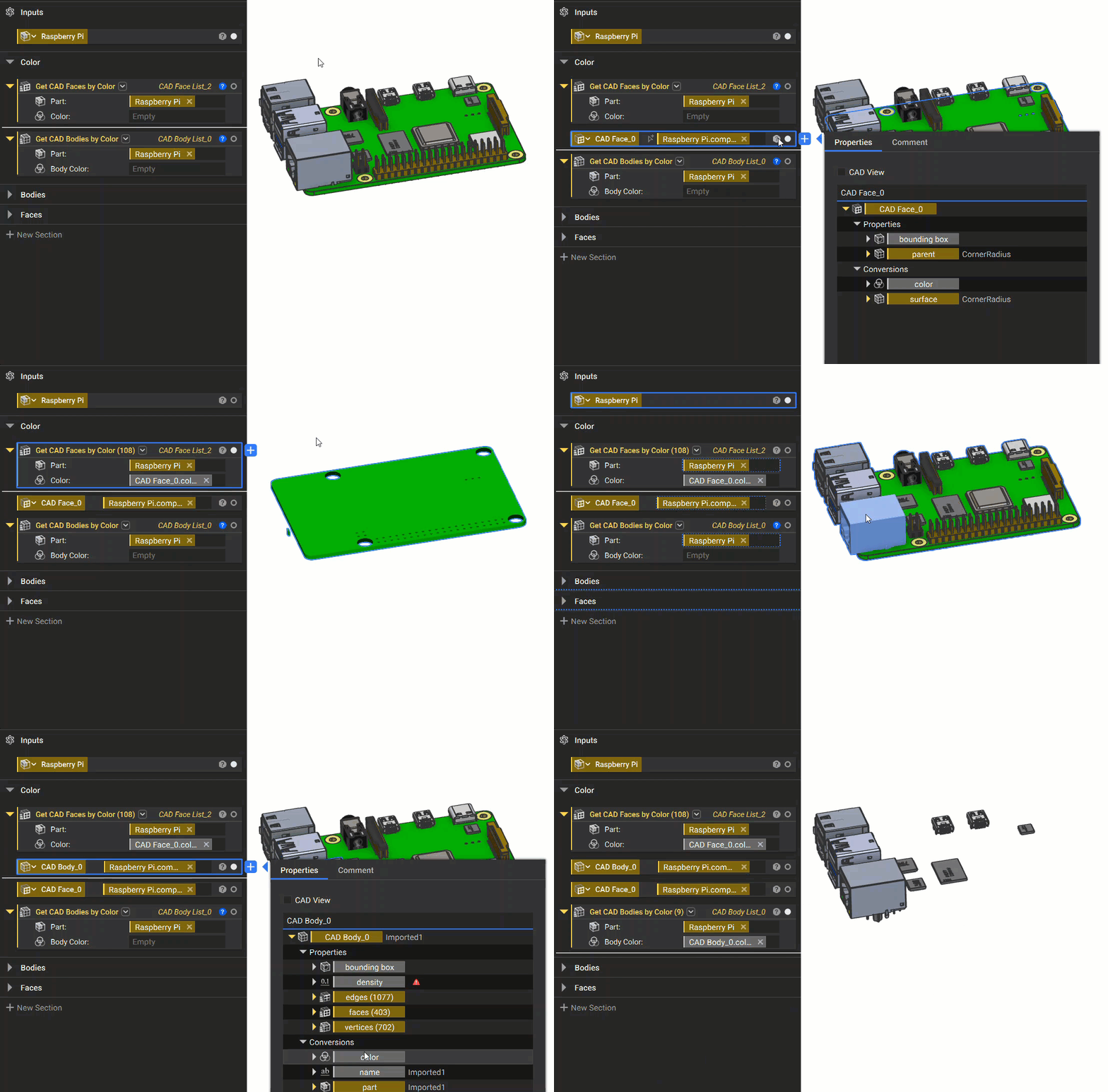
ou can extract CAD Faces and CAD Bodies using our two color based blocks:- Get CAD Faces by Color
- Get CAD Bodies by Color
Turning Multiple CAD Faces into a Single Surface
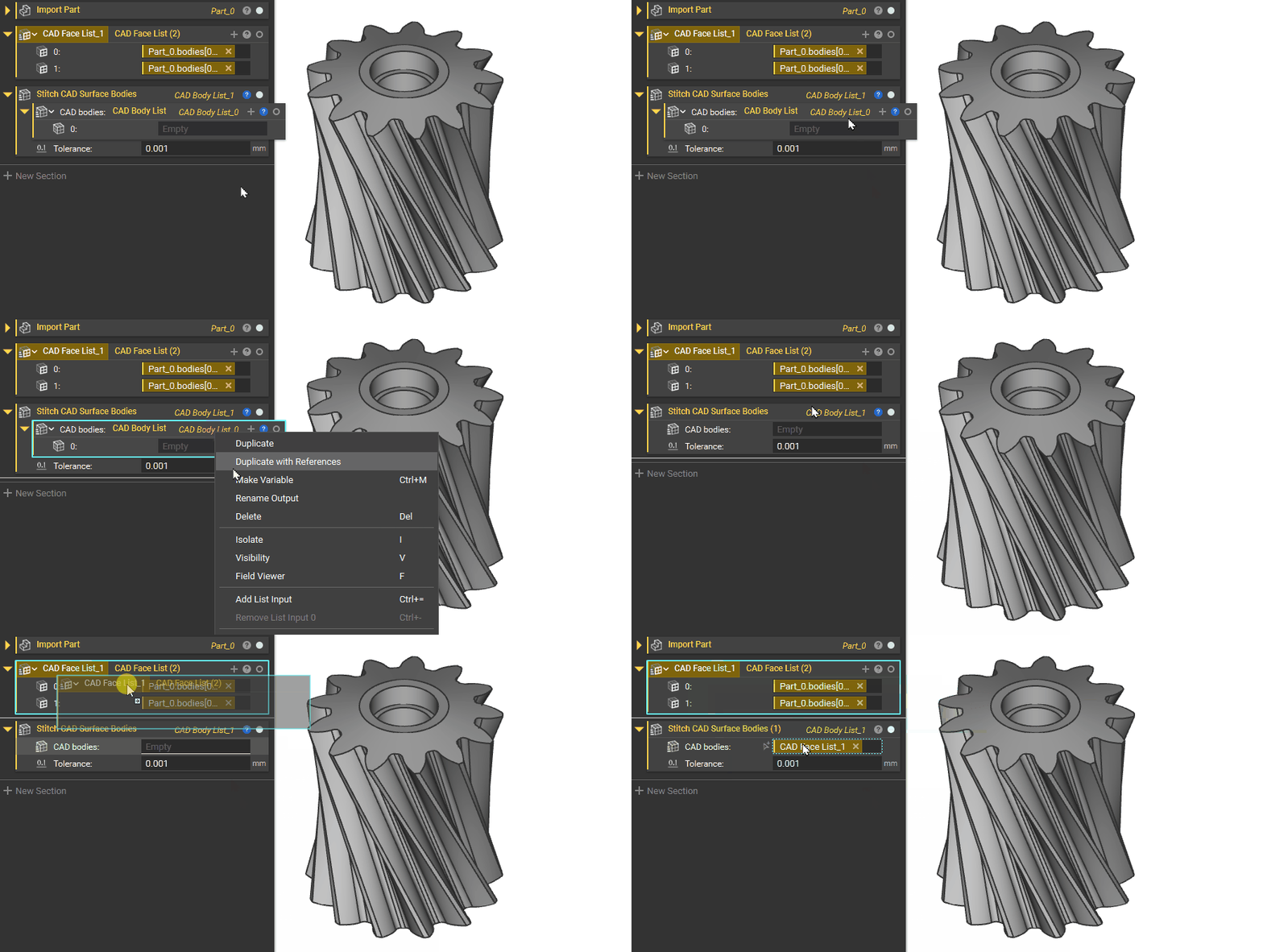
Create a CAD Face List of faces you want to merge, then use the Stitch CAD Surface Bodies or the Stitch Adjacent CAD Faces block. These blocks merge multiple sheets within a tolerance range and output the results as a list. This block comes auto-populated with a list, however. You cannot input a list into a list. You need to delete the auto-populated list to input the CAD faces.